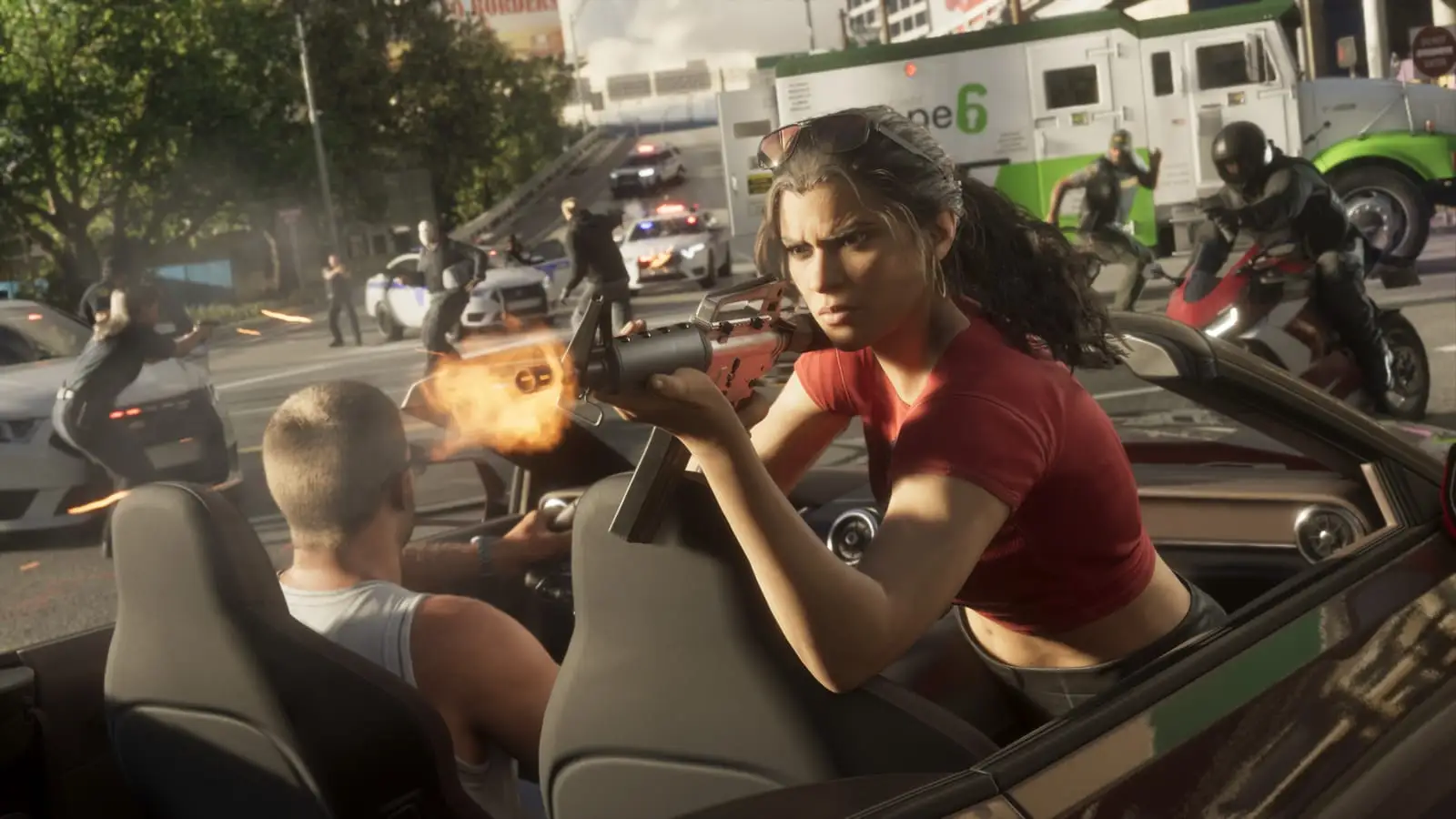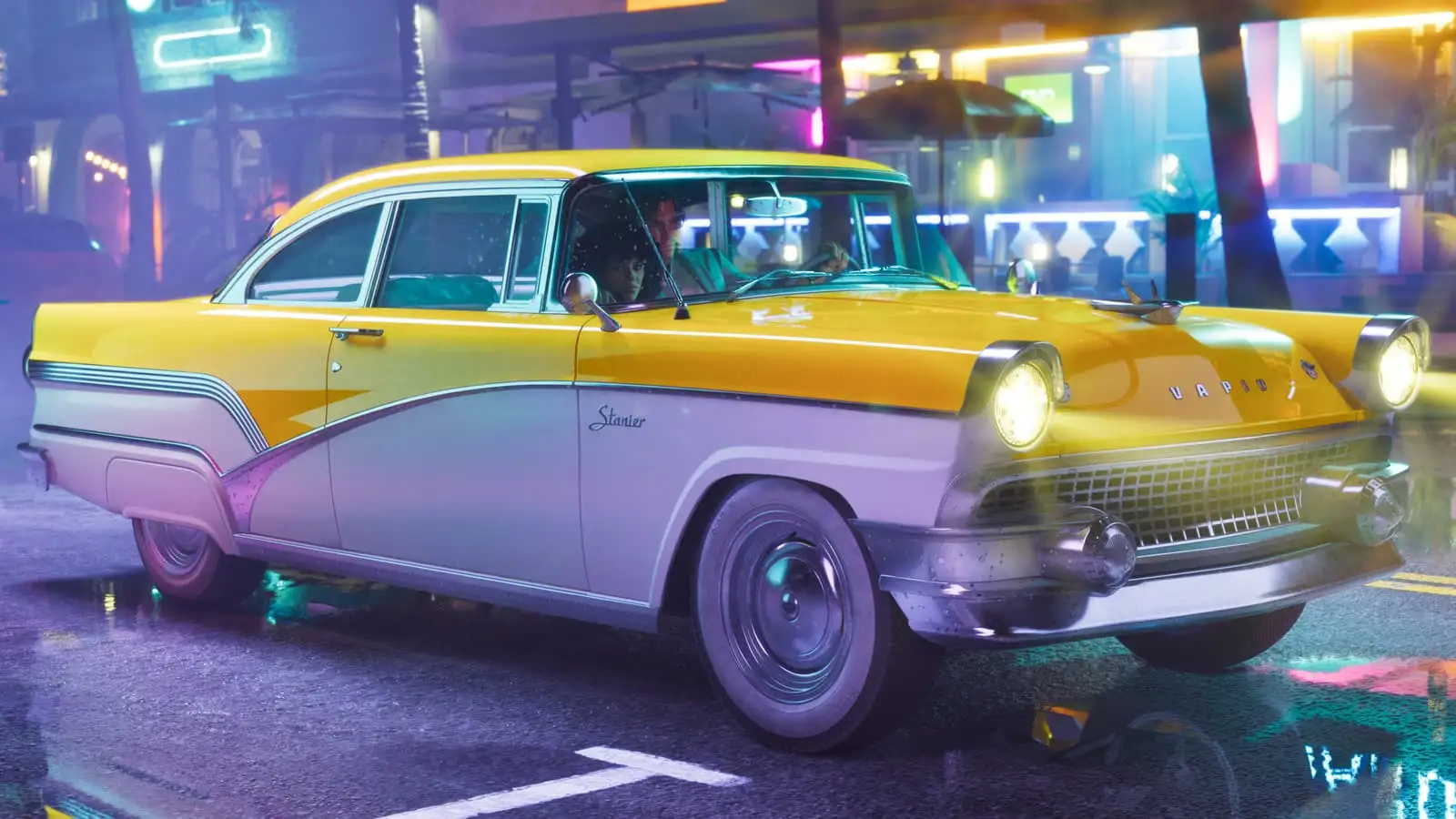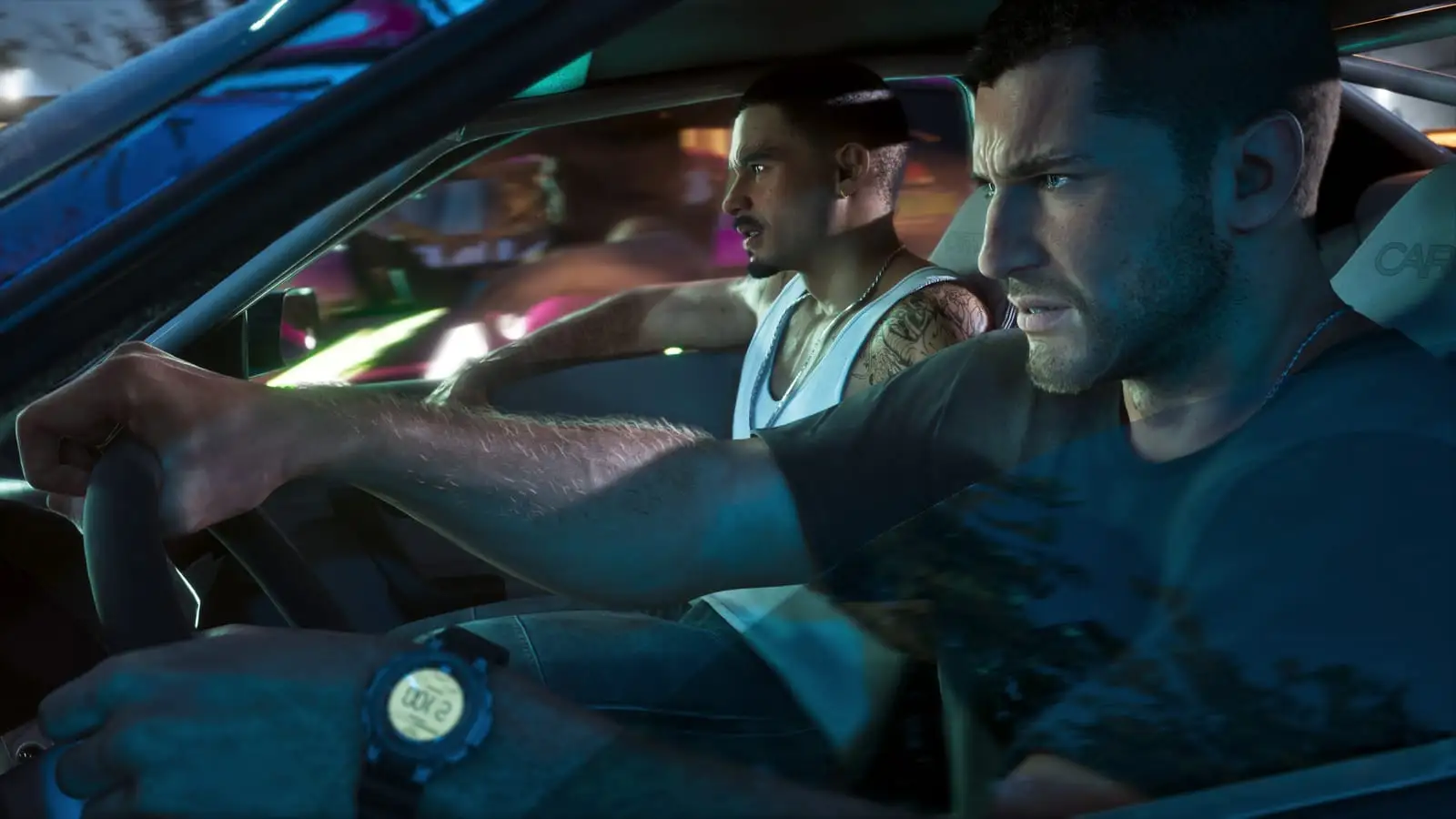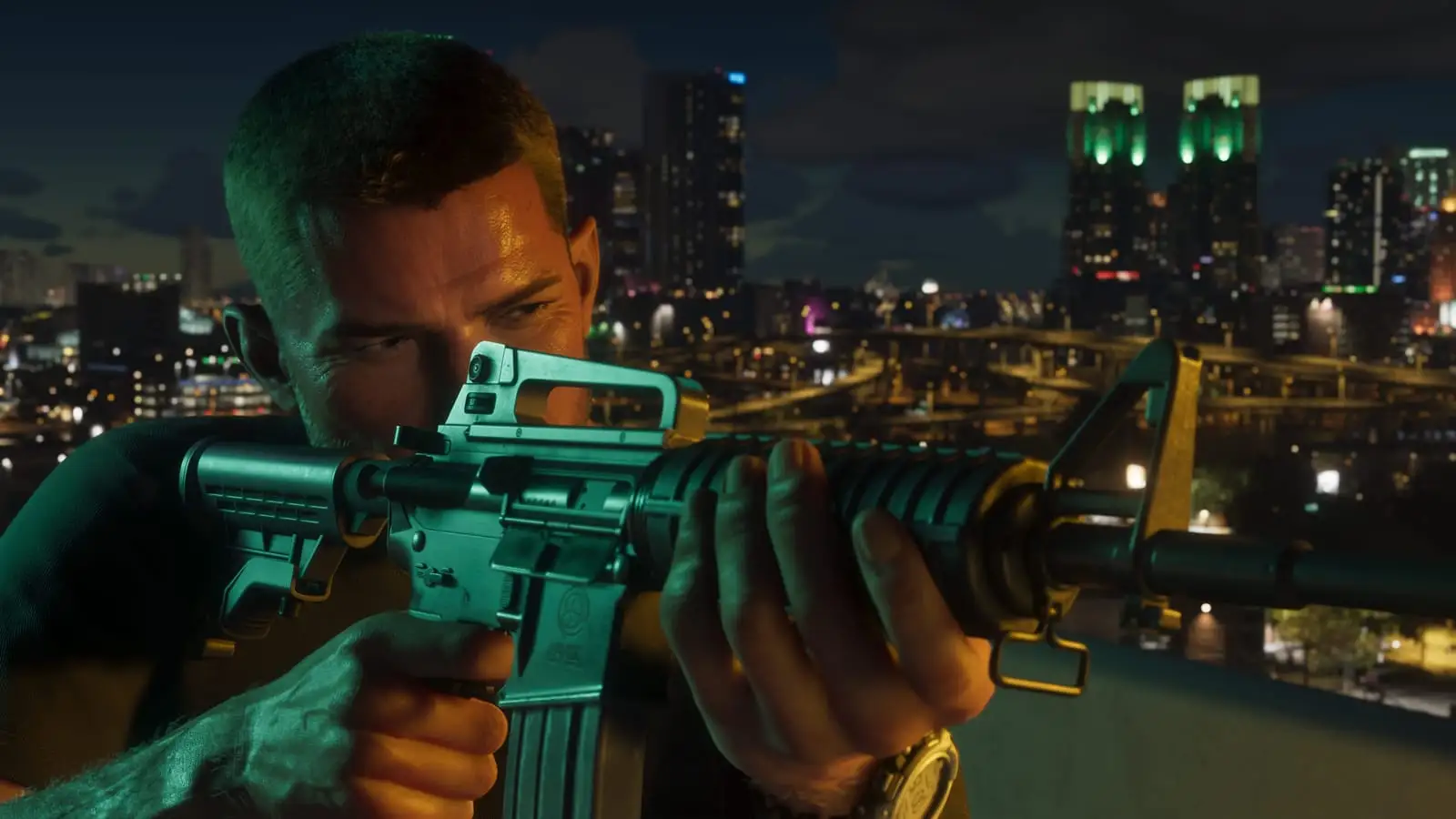
To fix washed-out or flat HDR in GTA 6, go to the in-game HDR settings (Settings, Display, HDR Calibration) and tune the three sliders against real gameplay, not just the test screens. Raise Black Levels slowly from the bottom until shadows just appear, bring Paper White down from its default, and set Max Brightness high enough that sunlit highlights actually reach your TV’s peak.
This page is labeled Reported: it comes from launch-week display testing and settings guides, not from Rockstar. It gives exact values only where independent sources agree. For everything else in the menus, see our best settings guide.
Where are the GTA 6 HDR settings?
Reported. HDR lives in the Display tab of the pause menu’s Settings. There is an HDR toggle and, next to it, an HDR Calibration screen where all the tuning happens.
- Pause menu
- Settings
- Display
- HDR Calibration
HDR must be switched on for the screen to matter.
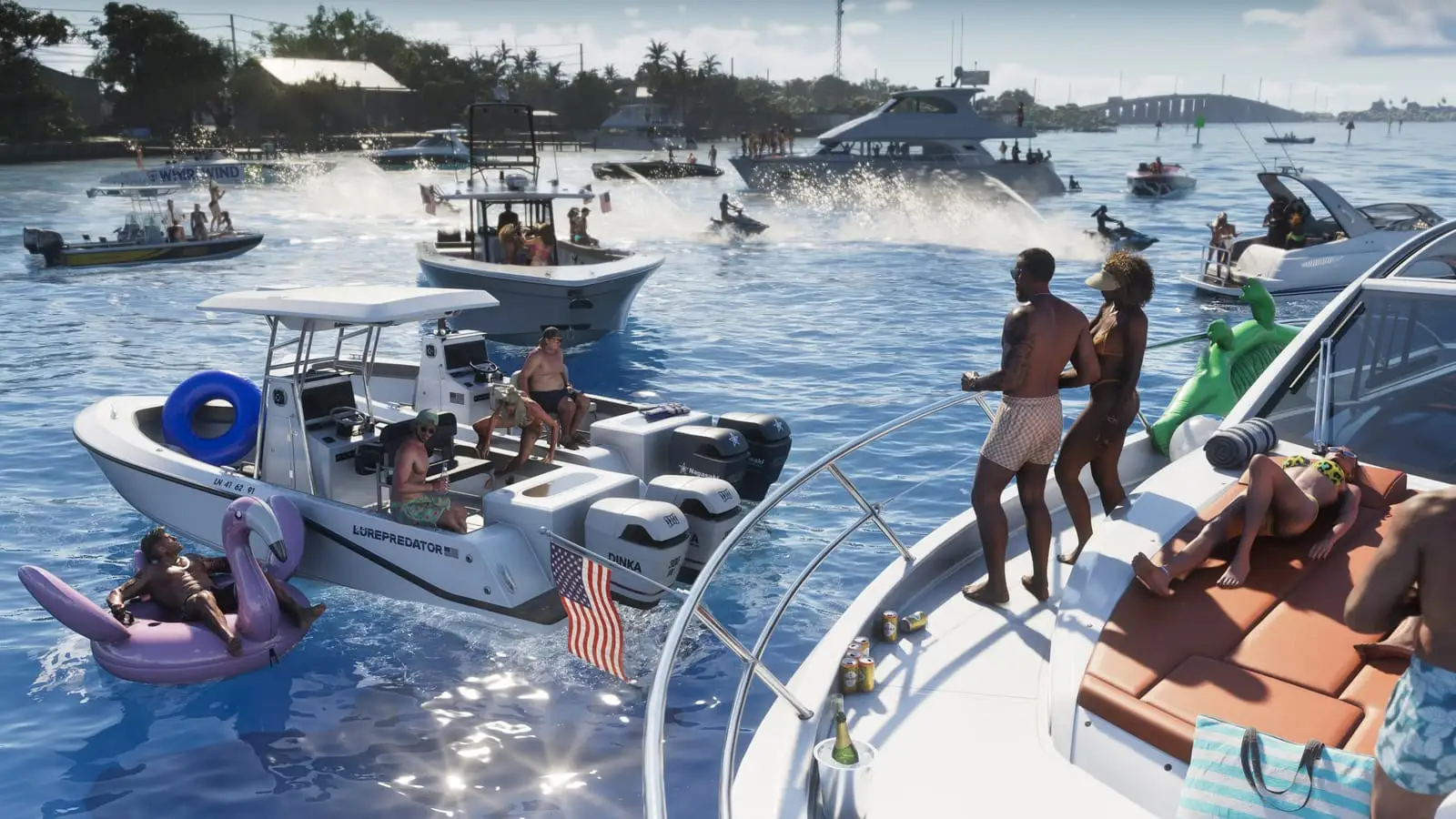
Reported. The calibration screen has three sliders, each with its own test image: Max Brightness, Black Levels and Paper White. The images are a white logo on black and two shots of a boat party, one in daylight and one at night. The defaults are 600 for Max Brightness and 50 for both Black Levels and Paper White.
Why does GTA 6 HDR look washed out or flat?
Reported. The HDR image itself is not broken; the calibration screens are what mislead. The three sliders interact in ways the test images do not show, so a picture that looks right during calibration can look grey, dim or flat once you are playing. Lowering Paper White, for example, also cuts how bright the brightest parts of the game get, and it makes the Black Levels slider far touchier.
Reported. The default Paper White is on the bright side. It pushes mid-tones and the menus up, which squeezes the gap between dark and bright and leaves many scenes looking flat. Black Levels cuts both ways: set too low, it crushes detail in dark cutscenes; set too high, it lifts blacks to grey.
Rumor. Testing on PS5 and Xbox Series X suggests GTA 6 ignores the console’s own HDR calibration and uses only its in-game sliders. If that holds, re-running the system HDR setup will not change how the game looks. Rockstar has not confirmed this.
How do you fix GTA 6 HDR settings?
Reported. Calibrate in a dark room, the way the fix was worked out, and treat any numbers you see online as a starting point for your own screen. Values that look good on one TV have caused banding, crushed shadows or darker skin tones on others.
- Darken the roomLights off, give your eyes a minute
- Max BrightnessWell above your TV's rated peak
- Black LevelsFrom the bottom up, until the background pattern just shows
- Paper WhiteDown from the default until mid-tones stop looking flat
- Check in playA cutscene, a sunny street and a night scene, then adjust
Reported. Max Brightness. Once Paper White comes down, the game’s real highlights fall well short of the number on the slider, so it needs to sit well above your display’s rated peak brightness. How far above depends on your screen, so check bright daytime scenes as you go.
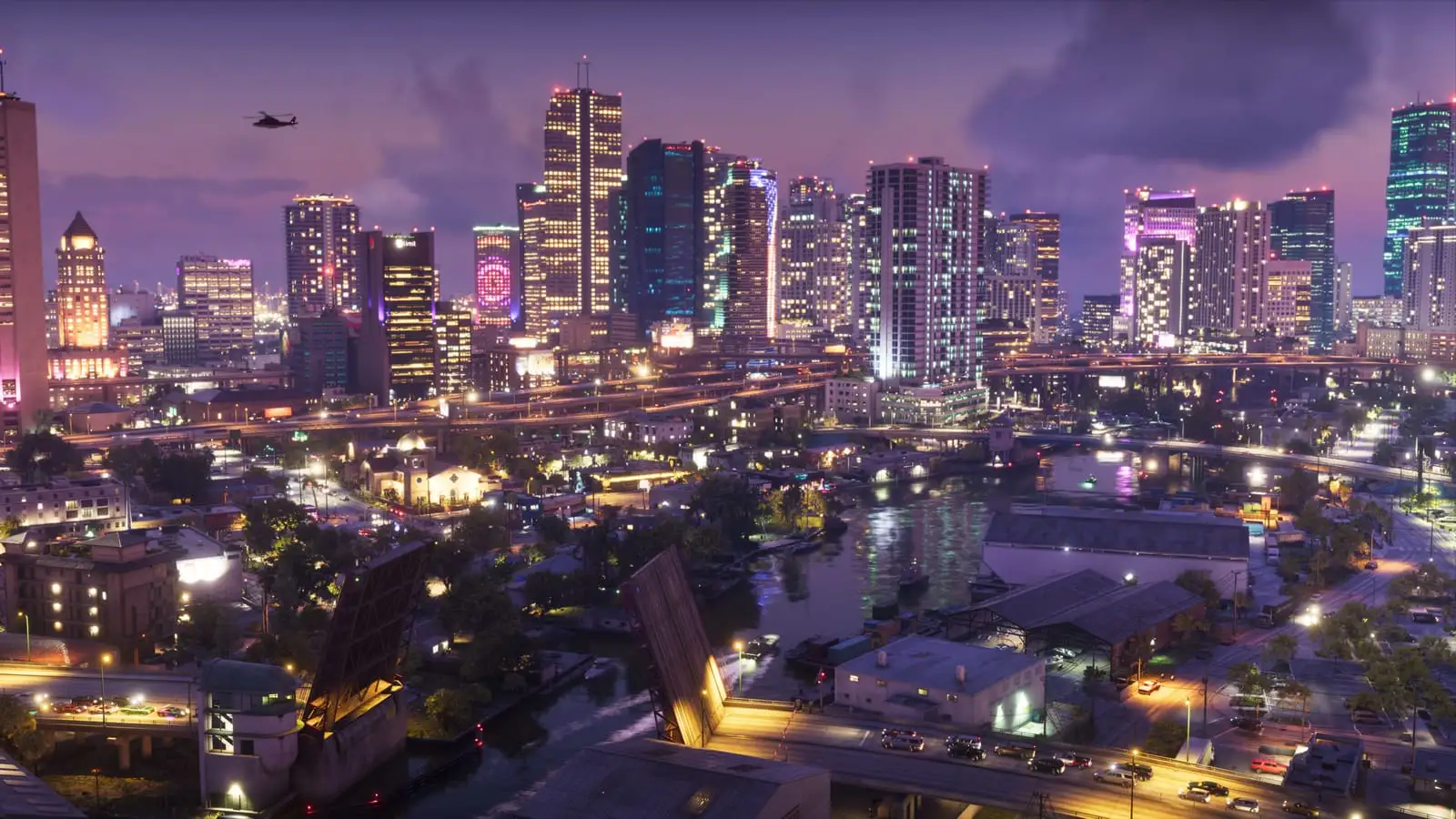
Reported. Black Levels. Hide the interface, start at the lowest value and raise it in small steps until the checkerboard background behind the image only just shows. Stop there: going further lifts the blacks and brings back the washed-out look.
Reported. Paper White. Bring it down from the default to calm over-bright menus and mid-tones. Because it changes the other two sliders, revisit Black Levels and Max Brightness after you move it.
What TV and console settings help GTA 6 HDR?
Reported. Turn off the TV’s extra picture processing, such as dynamic contrast, smart picture features and special HDR picture modes, which can fight the in-game calibration. HDR also has to be enabled in the console’s own video output settings, or the game’s HDR options do nothing.
Reported. Rockstar has not commented on the HDR calibration, and no official fix has been announced. Display testing on more consumer TVs is still under way, so the advice may firm up. If a patch does change it, it will show up in the notes for updates like 01.002.002.
Related settings
Motion blur, camera bob and the brightness screen for non-HDR displays are covered in the best settings guide. For why the console versions run at 30fps, see no 60fps mode, and for how the game plays once it looks right, the gameplay wiki.
Questions people actually search
Where are the HDR settings in GTA 6?
Pause the game, open Settings, switch to the Display tab and choose HDR Calibration. It has three sliders: Max Brightness, Black Levels and Paper White.
Why does GTA 6 look washed out in HDR?
The three HDR sliders affect each other, so values that look right on the calibration screens can leave the game itself flat or grey. Tuning them against real gameplay usually fixes it.
Does PS5 or Xbox HDR calibration change GTA 6?
Reports say the game relies on its own sliders rather than the console's HDR calibration, so the in-game HDR Calibration screen is the one that matters.
Has Rockstar patched the GTA 6 HDR?
Not as of November 23, 2026. Rockstar has not commented on the HDR calibration, so the slider tweaks are the only fix for now.
Sources
- Is GTA 6 HDR looking flat? Here's the quick fixHDTVTest
- GTA 6: Why Is It Too Dark? Here's How to Fix HDR SettingsPush Square
- HDR Expert Shares Their Three Recommended Display Settings For GTA 6Pure Xbox
- Best HDR calibration for GTA 6 on PS5Sportskeeda
- How to Calibrate HDR in GTA 6 on PS5 (Display Settings and Defaults)AllThings.How